Sitemap Couldn’t Fetch in WordPress: Find the Failing Request
- November 5, 2026
- Wordpress
If Search Console says a WordPress sitemap couldn’t fetch, the status needs a request-level investigation. Copy the exact submitted address, check the response and file contents, and establish whether the problem is current. A sitemap opening in your own browser does not prove Google retrieved the same response.
When a sitemap couldn’t fetch, begin by collecting evidence. Changing permalink settings, disabling security controls or repeatedly renaming the sitemap can make the report harder to explain without fixing its cause.
Collect a small support pack when a sitemap couldn’t fetch
Save the submitted sitemap URL, the Search Console property, the reported status and the last-read information where shown. Record when you checked it and which WordPress component currently generates the sitemap.
Do not guess the filename. WordPress and SEO plugins can expose different sitemap endpoints. Use the generator’s actual output, then compare it with the address in Search Console.
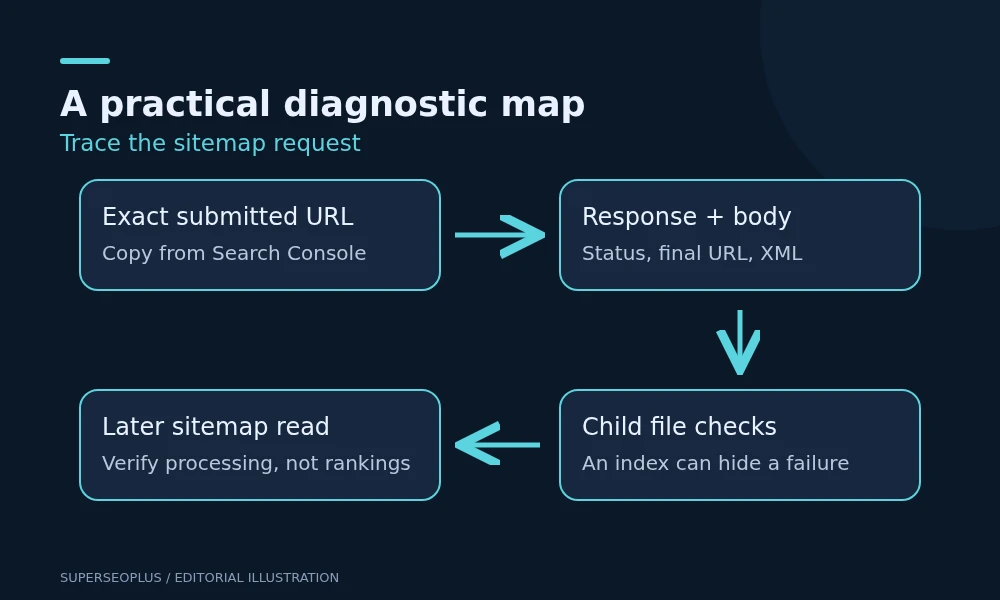
Your support pack should contain the exact URL, response status, final URL after any redirect, content type and a short description of the body. Add a failing child sitemap address if the top-level file is a sitemap index.
Make a signed-out browser check
Open the submitted URL in a private browser window. A formatted sitemap is fine; a login page, maintenance notice, firewall challenge or normal website page is not the expected sitemap content.
View the source. Determine whether it contains an XML sitemap index or URL list, or whether the server returned HTML. A visually blank page may still contain XML, so appearance alone is an unreliable test.
Google’s Sitemaps report help explains the report’s processing and error information. Keep the file’s retrieval status separate from whether Google indexes the pages it lists.
Capture a GET response when you need more detail
A developer can use the following diagnostic command, replacing the example URL with the exact sitemap address. It downloads a response and writes local evidence files; it does not edit WordPress.
curl --silent --show-error --location --max-redirs 5 --connect-timeout 10 --max-time 30 --dump-header sitemap-headers.txt --output sitemap-response.xml --write-out '%{http_code} %{url_effective}\n' 'https://example.com/sitemap_index.xml'The .xml filename does not prove that the downloaded body is XML: open and inspect it. Read all response blocks in the header file when redirects occurred.
A GET capture is useful because a HEAD request can be treated differently by some servers. Neither request impersonates a verified Google crawler. If Google still cannot fetch a file you can retrieve, ask the host to inspect actual requests and access-control logs.
Match the observation to the responsible system
- 404 or 410: compare the submitted address with the current generator endpoint and check whether the route exists.
- 401 or 403: investigate authentication or access controls; do not disable protection across the whole site.
- 429: ask the host whether rate limits are affecting legitimate requests.
- 5xx or timeout: collect timestamps and involve the host or developer.
- 200 with a challenge or error page: the successful status is hiding the wrong body.
- XML with parsing errors: investigate the reported syntax and the generating component.
For a report that appears outdated, compare the last read with the repair date before changing more settings. An old failure is not evidence that the current response still fails.
Check the children, not just the index
A sitemap index points to other files. Open the relevant child sitemap and inspect its response independently. The index can work while a post sitemap fails because it is generated differently or contains problematic output.
Illustrative example: the sitemap index returns XML, but the posts child returns a maintenance page from a cached response. The useful evidence is the child URL and that response. Submitting the index again would not demonstrate that the child changed.
Ask the developer to validate the affected XML when a parsing error is reported. Do not manually overwrite a dynamically generated sitemap or delete files simply because a general guide suggests that possibility.
Our guide to search engine submission and discovery explains where a working sitemap fits, and why successful retrieval does not guarantee page indexing.
Use plugin-specific repairs only after identifying the cause
Rank Math’s sitemap troubleshooting documentation covers issues such as output problems and routing. Apply the relevant step to a confirmed symptom, with a backup and a way to reverse the change.
For example, a routing repair cannot fix a firewall response, and a cache exclusion cannot correct malformed XML introduced by a component. When testing conflicts, use a staging copy or an approved troubleshooting process instead of disabling production plugins for visitors.
If the sitemap file itself has a noindex header, do not infer that all listed pages have the same directive. Check an individual page’s own response before making an indexing claim. Preserve unrelated settings while diagnosing the fetch problem.
Confirm the right outcome
Retest the exact submitted URL and affected children after repair. Check the body as well as the status. Then submit the correct sitemap address where appropriate and monitor a later read in Search Console.
Success at this stage means Google can retrieve and process the intended sitemap. It does not mean every listed URL will be crawled, indexed or ranked. Investigate individual pages separately if exclusions remain.
Frequently asked questions
Should I create a new sitemap filename when a sitemap couldn’t fetch?
Only if the configuration genuinely requires a different endpoint. A changed filename is not a diagnosis of why the original request failed.
Should I remove every URL that is not indexed?
No. Decide whether each URL belongs in the sitemap based on its purpose and preferred version. A useful page awaiting evaluation is different from an intentional duplicate.
Can the problem be outside WordPress?
Yes. When a sitemap couldn’t fetch, a proxy, host, firewall or cached response can answer before the sitemap generator runs. That is why response evidence matters.
Use our SEO audit checklist for the wider review, or share the support pack during a technical SEO investigation.
SuperSEOPlus Editorial is the editorial byline for articles published on SuperSEOPlus. It is a publication byline, not an individual author. The guides cover SEO, local SEO, link building, content marketing, WordPress and digital marketing, and aim to explain how these topics work in practical terms. Where an article recommends third-party tools or products, any affiliate relationship is disclosed in the article. We do not guarantee rankings, traffic or income.
About us and this blog
We are a digital marketing company with a focus on helping our customers achieve great results across several key areas.
Request a free quote
We offer professional SEO services that help websites increase their organic search score drastically in order to compete for the highest rankings even when it comes to highly competitive keywords.
More from our blog
See all posts



Recent Posts
- Duplicate Title Tags in WordPress: Identify Which Problem You Have November 7, 2026
- Sitemap Couldn’t Fetch in WordPress: Find the Failing Request November 5, 2026
- Google Chose a Different Canonical: A WordPress Comparison Checklist November 3, 2026