Online PDF Tools
Merge PDF
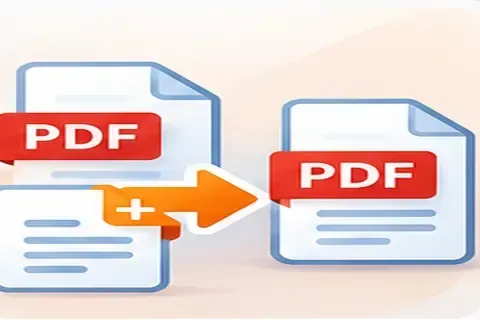
Join two or more PDF files into a single document. Add your files, put them in the order you want with the move buttons, and press Merge. The work happens inside your browser, so your documents are not sent to our server or anyone else's.
How to use it
- Choose two or more PDF files, or add more in a second go.
- Use Move up and Move down to set the order, and Remove to drop a file.
- Press Merge PDFs, then download merged.pdf or open it in a new tab to check it.
Example
Merge a cover letter, a CV and a certificate into one application file by listing them in that order.
Always open the merged file and scroll through it before you send it on.
Getting the order right
Files are joined in the order shown, from top to bottom, so use Move up and Move down before you press Merge. Check the page count afterwards: it should equal the total of the files you added.
Common mistakes and limits
- Merging a password-protected file. It must be unlocked first (see unlock PDF).
- Expecting bookmarks, form fields or links to carry across perfectly.
- Very large files can be slow in a browser, because everything is processed on your device.
Questions
Are my files uploaded?
No. The PDFs are read and combined by code running in your browser. Closing the tab discards everything.
Why does it say a file is password-protected?
Protected PDFs cannot be changed here. Remove the password in the program that created the file, or open it and save a copy without protection, then add it again.
Will bookmarks, forms and links survive?
Page content, images and text are kept. Document-level features such as bookmarks and some form fields may not carry over to the merged file, so check the result before relying on it.
Is there a size limit?
Each file can be up to 100 MB and up to 30 files can be merged at once. Very large sets depend on your device's memory.
Get practical SEO tips by email
Occasional emails with new guides and tools. Confirm by email first; unsubscribe in one click.